
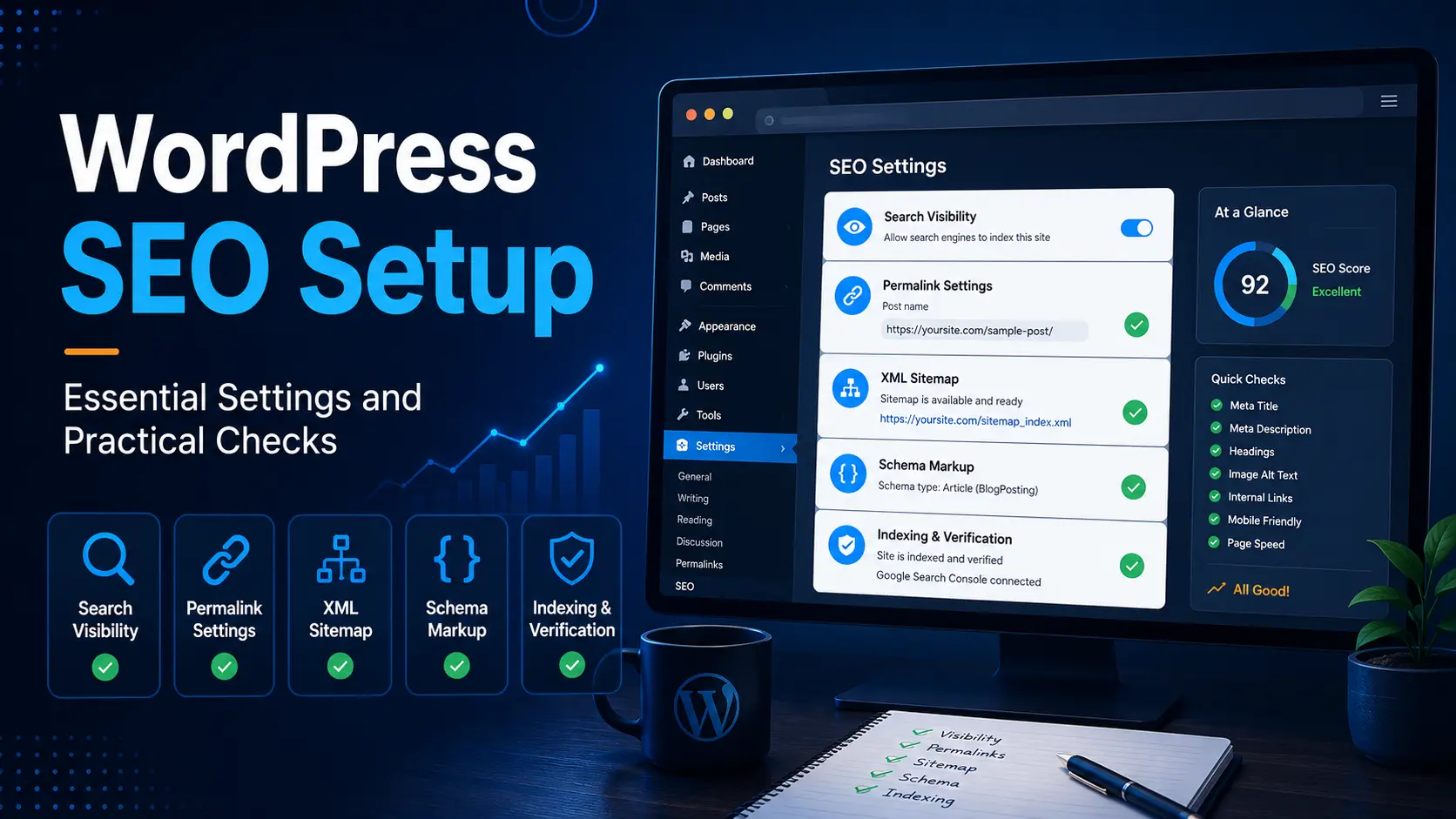
Publishing useful content is important, but your WordPress settings also affect how search engines discover and understand the website.
A proper WordPress SEO setup is more than installing an SEO plugin. It includes checking search-engine visibility, permalinks, sitemaps, titles, schema, categories, archives and indexability.
Some settings apply across the complete website, while others must be reviewed for individual posts. A wrong site-wide setting can affect many URLs, and changing an existing setting without understanding it may create new problems.
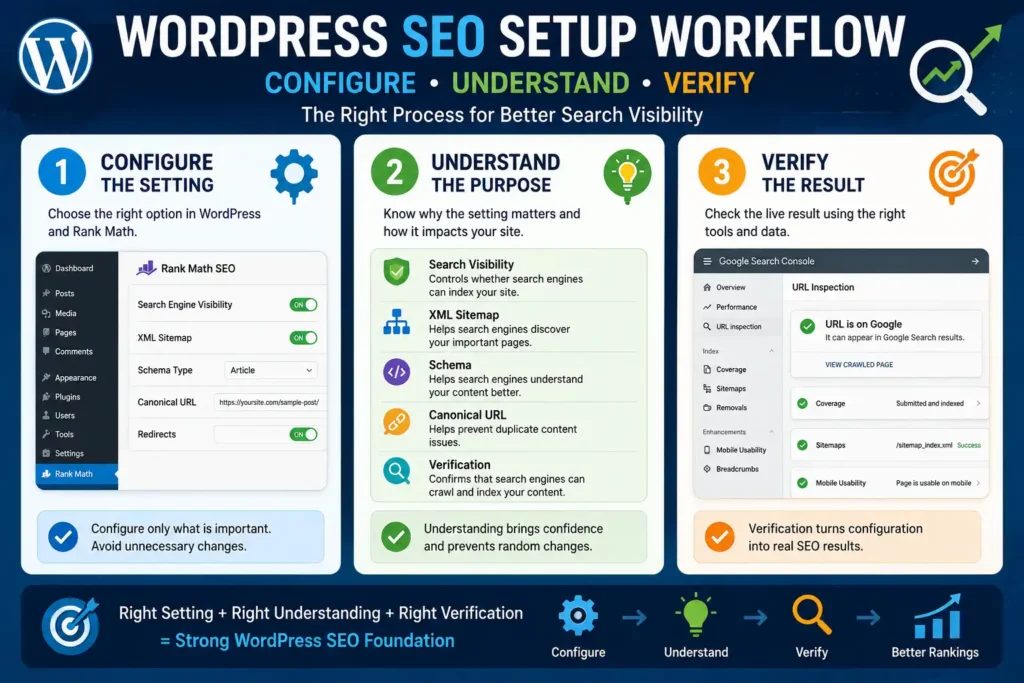
This guide follows a practical approach:
Configure → Understand → Verify
You will learn which WordPress SEO settings matter, what they control and how to confirm that they are working correctly.
सरल शब्दों में, हम केवल settings ON नहीं करेंगे। हम उनका purpose समझेंगे और बदलाव के बाद result verify भी करेंगे।
By the end, you will have a practical process for reviewing both site-wide SEO settings and post-level checks.
What Does WordPress SEO Setup Include?
WordPress SEO setup has two levels.
The first is site-wide configuration. These settings affect many URLs and include search-engine visibility, permalink structure, sitemap generation, archive controls, default titles and schema.
The second is post-level optimisation. These checks apply to individual posts and pages, such as the SEO title, meta description, URL, canonical, schema, internal links and image alt text.
This difference is important because a post can have a good title and useful content but still face problems if the complete website is accidentally set to noindex. Similarly, a correct site-wide setup does not automatically make every individual post well optimised.
If these concepts are new to you, this SEO basics guide explains how crawling, indexing and optimisation work together.
The practical goal is not to keep changing settings. It is to create a stable foundation and then verify important pages before and after publication.
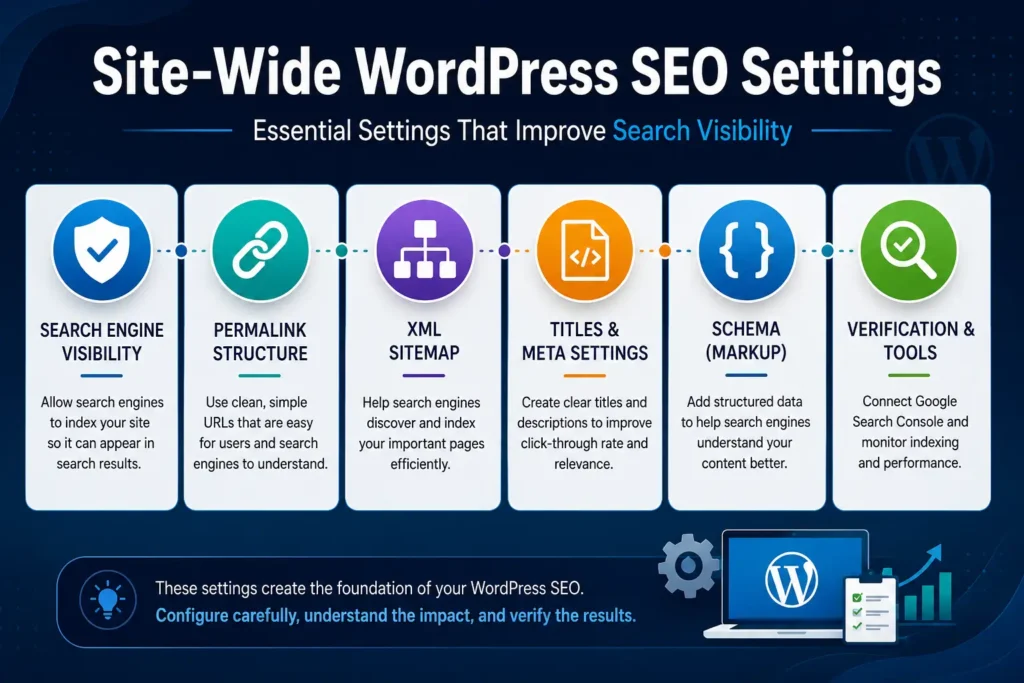
Before Changing Your SEO Settings
Do not change several WordPress or Rank Math settings at the same time. When many changes are made together, identifying the cause of a problem becomes difficult.
Before modifying an important setting:
- Record the current option or take a screenshot.
- Confirm what the setting controls.
- Check whether it will affect existing URLs.
- Make one logical change at a time.
- Save the setting and test the website.
A recent backup is especially important before changing permalinks, redirects or site URLs.
If your website configuration is still incomplete, follow this WordPress setup guide for beginners before making advanced SEO changes.
Also remember that a setting recommended for one website may not suit every website. A small single-author blog, a news website and an online store may need different archive and schema decisions.
Check Search Engine Visibility
Go to:
WordPress Dashboard → Settings → Reading
Find this option:
Discourage search engines from indexing this site
For a public website that you want Google to index, this box should normally remain unchecked.
When the box is checked, WordPress asks search engines not to index the website by adding a noindex instruction. This does not make the website private; normal visitors can still open it. Search engines are simply requested not to include its pages in search results.
You can also review the official WordPress Reading Settings documentation for this option.
This option is sometimes enabled while a website is being designed and then forgotten after launch. Therefore, it should be one of the first checks when an entire site is not appearing in search.
After confirming the setting, do not stop there. Inspect the homepage and an important post in Google Search Console. A correct WordPress option is useful, but URL-level verification gives you better practical confirmation.
For a broader understanding of crawling, indexing and website accessibility, read this technical SEO guide for beginners.
Review the Permalink Structure
Go to:
WordPress Dashboard → Settings → Permalinks
For a typical blog, the Post name structure creates clear URLs such as:
example.com/wordpress-seo-setup/
WordPress describes permalinks as the permanent URLs of posts, pages, categories and tag archives. Once a URL has been published and linked, it should not be changed casually.
A clean URL should usually:
- Describe the main topic
- Avoid unnecessary dates and numbers
- Remain reasonably short
- Use lowercase words separated by hyphens
The important intermediate-level lesson is that changing the global permalink structure on an established website can change many existing URLs. Old links may then lead to 404 errors unless proper redirects are created.
Therefore:
- A new website can choose a clear structure before publishing many posts.
- An existing website should not change its permalink structure only to improve appearance.
- When a published URL must change, create a suitable redirect from the old URL to the new one.
Rank Math includes a Redirections module, but it must be enabled before its redirection controls are available. In Advanced Mode, redirects can be managed through the Redirections screen or individual editor controls.
Confirm HTTPS and the Preferred Website Version
Go to:
WordPress Dashboard → Settings → General
Review:
- WordPress Address
- Site Address
The WordPress Address identifies where the WordPress core files are installed. The Site Address is the public address visitors use to reach the website. On a normal root installation, these addresses are often the same.
Check that the preferred version is consistent:
https, not an unintendedhttpversion- One consistent
wwwor non-wwwformat - Correct domain spelling
- No accidental staging or temporary URL
Do not edit these fields experimentally. An incorrect site address can affect access to the dashboard or website.
You can also open:
Tools → Site Health → Info
Site Health displays information such as the Home URL, Site URL, permalink structure and whether the website is using HTTPS.
After checking the settings, open a few pages in an incognito window. Confirm that the browser loads the preferred HTTPS version and does not create a redirect loop.
Configure Essential Rank Math Settings
Rank Math provides many modules, but a small blog does not need to enable every feature.
The essential areas usually include:
- Titles and Meta
- Sitemap
- Schema
- Redirections
- 404 Monitor
The 404 Monitor and Redirections modules are available through Rank Math’s Advanced Mode. The 404 Monitor can help identify requests for missing URLs, while the Redirections module manages redirects where a genuine replacement page exists.
Do not redirect every 404 URL automatically. Some 404 requests may come from bots, typing mistakes or URLs that never existed. Create a redirect when an old or incorrect URL has a relevant destination.
The practical rule is:
Monitor first, understand the source and redirect only when the destination genuinely helps the visitor.
Also avoid enabling a feature only because it exists. Each active module adds another setting that must be understood and maintained.
Set Up and Verify the XML Sitemap
Rank Math can generate an XML sitemap that lists selected content types and archive URLs.
Go to:
Rank Math SEO → Sitemap Settings
Check whether important content types such as posts and pages are included. Then open the sitemap URL in the browser and confirm that it loads without an error.
A sitemap helps search engines discover new or updated URLs, but it does not guarantee crawling, indexing or ranking. Google’s official sitemap documentation also recommends including the preferred canonical URLs you want search engines to discover.
After the sitemap opens correctly:
- Submit its location in Google Search Console.
- Check whether the status shows Success.
- Review errors if Google cannot fetch it.
- Do not resubmit the same sitemap after every new post.
WordPress or an SEO plugin can update the sitemap automatically when new posts are published. Search Console only needs the sitemap location; it does not require a fresh manual submission for every article.
Avoid including empty or unnecessary archive pages merely to make the sitemap larger. Rank Math allows separate inclusion decisions for categories and tags and advises against unnecessarily including multiple similar taxonomy archives.
This Google Search Console guide explains how to check sitemap status, inspect published URLs and review indexing information.
Decide How Categories, Tags and Archives Should Work
WordPress automatically creates archive pages for categories, tags, authors and dates. These pages group posts according to their assigned terms or publishing details.
The correct indexing decision depends on whether the archive provides unique value.
A useful category archive may:
- Organise closely related posts
- Include an original introduction
- Help readers explore a subject
- Receive regular updates
Such a category page can remain indexable when it forms a meaningful part of the website structure.
Tag archives are often less useful on a small blog, especially when many tags contain only one post or repeat the same grouping already handled by categories. In that situation, setting thin tag archives to noindex can reduce unnecessary low-value URLs.
For a single-author blog, the author archive may repeat nearly the same list of posts shown elsewhere. Rank Math provides controls for enabling, disabling or noindexing author and date archives, as well as separate robots settings for category and tag archives.
Do not follow a universal rule such as “all categories should be indexed” or “all archives should be noindexed.” Ask:
- Does this archive have a clear purpose?
- Does it contain enough related content?
- Is it different from another archive?
- Would a search visitor find it useful?
The decision should be based on usefulness and website structure, not only on the archive type.
Review Titles, Schema and Indexability
Go to Rank Math SEO → Titles & Meta and review the default title settings for posts, pages and archives. Templates are useful, but important pages should still have a clear SEO title and meta description written for their actual purpose.
For normal blog posts, Article → Blog Post is usually suitable. Pages such as About Us, Contact Us and legal pages should not automatically use Blog Post schema.
Before publishing an important page, confirm that its robots setting is Index and the canonical URL points to the correct version. Rank Math normally creates a self-referencing canonical, so the custom canonical field should usually remain unchanged.
Optimise Images and Internal Links
Use descriptive image file names, reasonable compression and meaningful alt text. Alt text should explain the image naturally rather than repeat the focus keyword only for an SEO score.
Automatic alt-text tools can be helpful for missing fields, but they may not understand the real purpose of an image. Important images should therefore be reviewed manually.
Internal links should connect readers with the next relevant guide. Use clear anchor text and avoid adding links only because an SEO plugin recommends them. Important pages should not remain hidden without links from related posts, categories or navigation.
Run a Final Post-Level SEO Check
Site-wide settings provide the foundation, but every post still needs an individual review.
Before publishing, check the URL, SEO title, meta description, headings, category, images, internal links, external references, schema, canonical and robots setting. Then preview the page on desktop and mobile.
Rank Math can identify missing elements, but it cannot judge the complete usefulness or accuracy of an article. Do not repeat keywords unnaturally only to increase the score.
Common WordPress SEO Setup Mistakes
Common mistakes include changing live permalinks without redirects, leaving search visibility disabled, indexing empty archives, creating too many tags and enabling unnecessary Rank Math modules.
Another mistake is changing several site-wide settings together. Make one controlled change, test the live result and then continue.
Practical WordPress SEO Setup Checklist
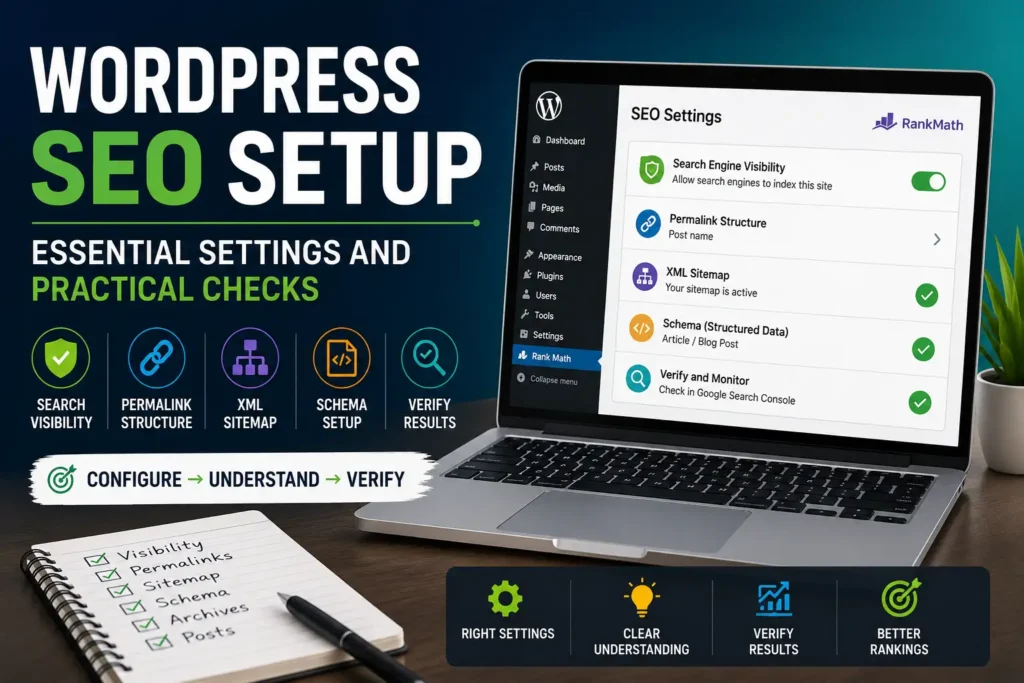
Before completing the setup, confirm that:
- The “Discourage search engines from indexing this site” box is unchecked.
- The preferred HTTPS version loads correctly.
- Permalinks are stable.
- The sitemap opens and shows Success in Search Console.
- Archives have clear indexing decisions.
- Schema, canonical and robots settings are appropriate.
- Images and internal links have been reviewed.
- Important posts have been checked individually.
FAQs About WordPress SEO Setup
Is an SEO plugin enough for WordPress SEO?
No. An SEO plugin helps manage titles, sitemaps, schema and indexing settings, but useful content, search intent, internal links and website quality still need manual attention.
Which permalink structure is best for a WordPress blog?
For most blogs, the Post name structure creates simple and readable URLs. However, an established website should not change its permalink structure without planning redirects for old URLs.
Should WordPress categories and tags be indexed?
Useful category pages can remain indexable when they organise related posts and help readers. Thin, duplicate or rarely used tag archives may be better kept noindex. The decision should depend on the website structure.
Does submitting a sitemap guarantee indexing?
No. A sitemap helps search engines discover important URLs, but it does not guarantee crawling, indexing or ranking. Check its status in Google Search Console and investigate genuine errors.
How often should WordPress SEO settings be checked?
Most site-wide settings should remain stable after correct configuration. Review important settings after major plugin, theme or URL changes, and perform a simple SEO audit every few months.
Conclusion
A reliable WordPress SEO setup is not about enabling every available option. It is about understanding important settings, making careful decisions and verifying the results.
Focus on search visibility, stable URLs, sitemap health, sensible archive settings, correct schema, indexability and post-level checks. Once the foundation is correct, avoid unnecessary changes and review the website periodically.
Review Your WordPress SEO Setup
Use the checklist in this guide to review one section at a time.
Start with search-engine visibility and permalinks, then check the sitemap, archives, schema and important published posts. Record only genuine issues and fix them carefully instead of changing several settings together.