
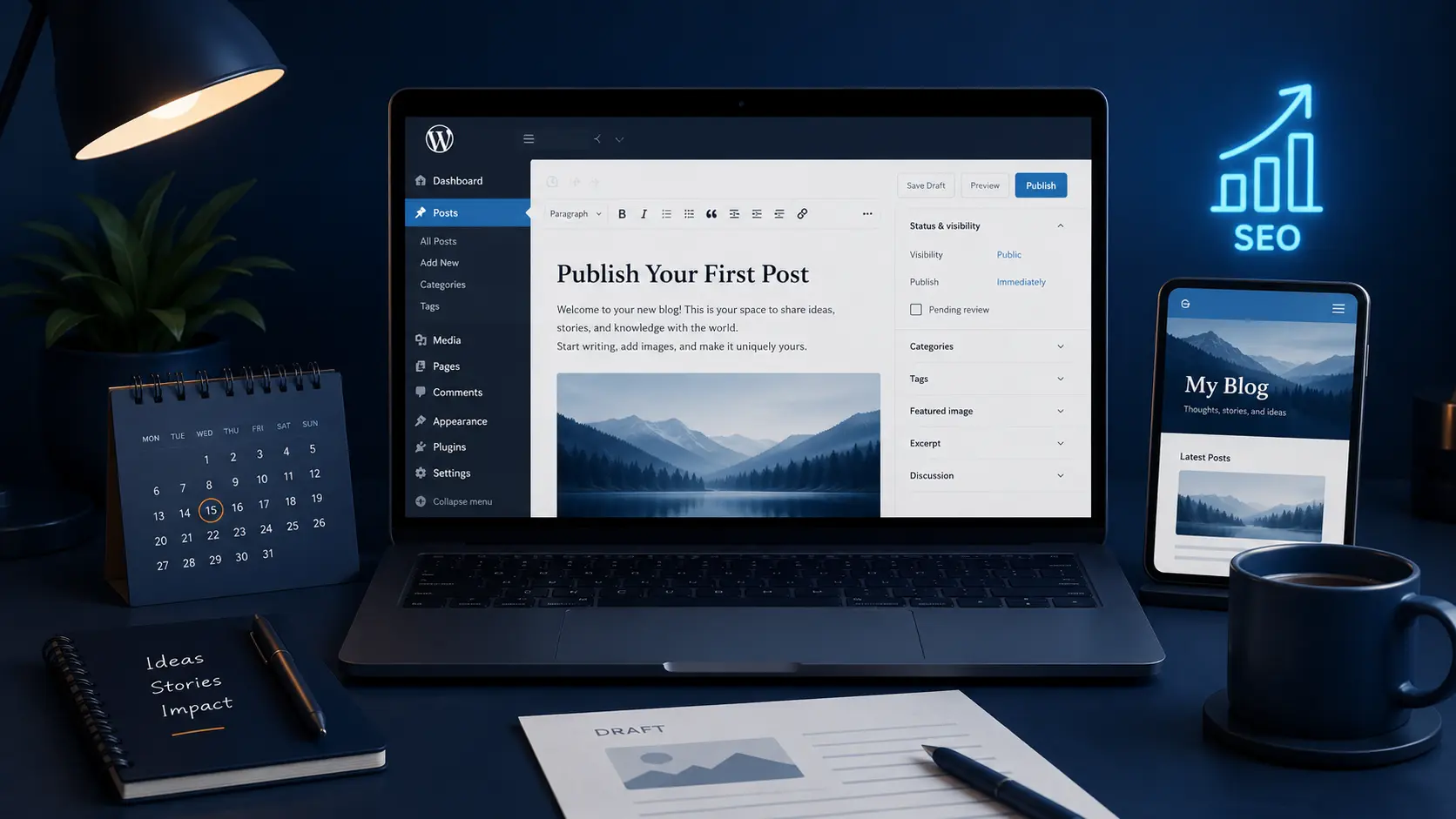
Starting a WordPress blog looks easy from outside, but when a beginner opens the WordPress dashboard for the first time, everything can feel confusing.
Theme, plugin, pages, menu, permalink, SEO settings, homepage — itna sab dekhkar lagta hai ki blogging start karne se pehle hi website setup ek bada task ban gaya.
Agar aap beginner ho to ye feeling normal hai.
The good news is that you don’t need to understand every WordPress option on day one. You only need to set up the important things first, so your blog looks clean, works properly, and is ready for publishing helpful content.
In this WordPress setup guide for beginners, we will go step by step and understand how to prepare a WordPress blog in a simple and practical way.
No heavy technical words, no complicated process — just practical steps that help you build your blog the right way.
Simple words me samjhein, WordPress setup means making your blog ready for readers, Google, and future growth before you start posting regularly.
Table of Contents
What Is WordPress Setup?
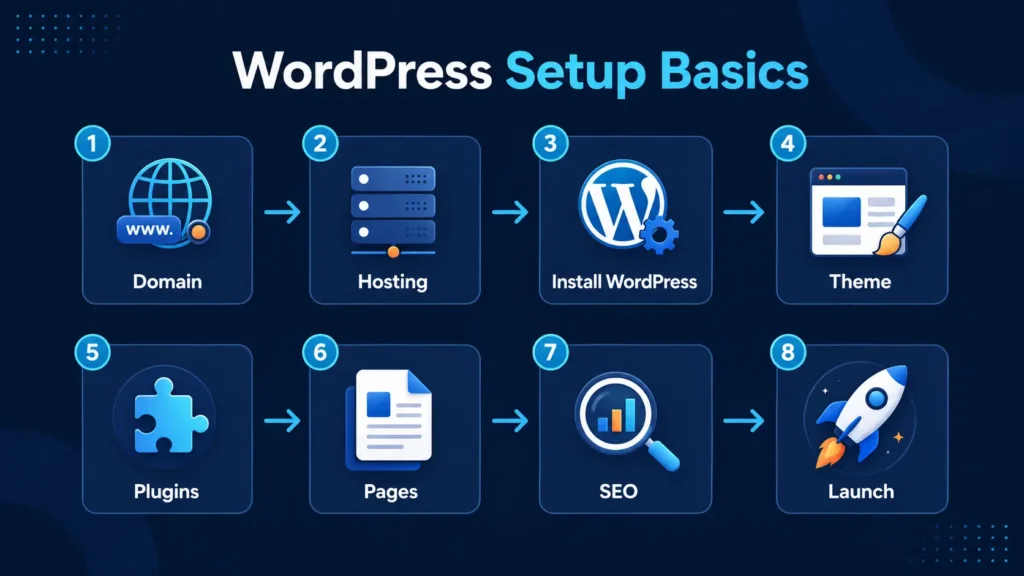
WordPress setup means arranging the important parts of your WordPress website after installation.
Many beginners think WordPress setup is only installing WordPress. But installation is just the first step. After that, you need to set your website title, permalink, theme, plugins, pages, menu, security, SEO settings, and basic design.
Think of it like preparing for a trip. Buying a ticket is important, but it is not enough. You also need a place to stay, a travel plan, basic arrangements, and clear direction. Only then does the trip become smooth.
Your blog is also similar.
WordPress installation gives you the structure. Proper setup makes it useful for readers, search engines, and future blog growth.
So, a good WordPress setup guide for beginners should not confuse you with every advanced option. It should help you set up the important things first.
Why WordPress Setup Is Important
A proper WordPress setup helps your blog look clean and professional from the beginning. If your website is messy, slow, confusing, or difficult to navigate, visitors may leave quickly.
Good setup also helps search engines understand your website better. Clean URLs, proper categories, useful pages, and SEO settings make your blog easier to crawl and understand.
It also saves time later. If you set the basics correctly in the beginning, you don’t need to fix everything again and again.
For example:
- If you ignore permalink settings and change URLs later, it can create broken links.
- If you install too many plugins, your website may become slow.
- If you do not create basic pages like About, Contact, Privacy Policy, and Disclaimer, your site may look incomplete.
- If your menu is confusing, readers may not find important content easily.
So, before you start writing posts regularly, set up your WordPress blog properly. A clean setup gives your blog a better foundation.
Step 1: Choose the Right WordPress Version
Before setup, you should understand one important thing. There are two common WordPress options:
WordPress.com
WordPress.org
WordPress.com is more controlled and beginner-friendly, but it has limitations if you want full control.
WordPress.org is self-hosted WordPress. It gives you more control over themes, plugins, SEO, monetization, and website growth.
For serious blogging, most bloggers use WordPress.org with their own domain and hosting.
If your goal is to build a long-term blog, earn from blogging, use SEO properly, and customize your website freely, then self-hosted WordPress is a better option.
Before setting up WordPress, make sure you choose a profitable blogging niche clearly.
Step 2: Set Your Site Title and Tagline
After installing WordPress, go to:
Settings → General
Here you will see:
Site Title
Tagline
WordPress Address
Site Address
Admin Email
Timezone
Your site title should be your blog or brand name. For example, DigitalBhai.
Your tagline should explain what your site is about in a simple way.
Example:
Learn Blogging, SEO and WordPress in Simple Hindi
Avoid confusing taglines. A beginner visitor should understand your site in a few seconds.
Also set your timezone correctly. This helps with post scheduling and website timing.
Step 3: Set Permalink Structure
This is one of the most important steps in any WordPress setup guide for beginners.
Permalink means the URL structure of your blog posts.
Go to:
Settings → Permalinks
Choose:
Post name
This will make your URLs clean and SEO-friendly.
For example:
yourdomain.com/wordpress-setup-guide-for-beginners/
This looks better than:
yourdomain.com/?p=123
Clean URLs are easier for users to read and better for SEO.
Agar aap beginner ho to remember this rule: set permalink to “Post name” before publishing many posts.
Step 4: Install a Clean and Lightweight Theme
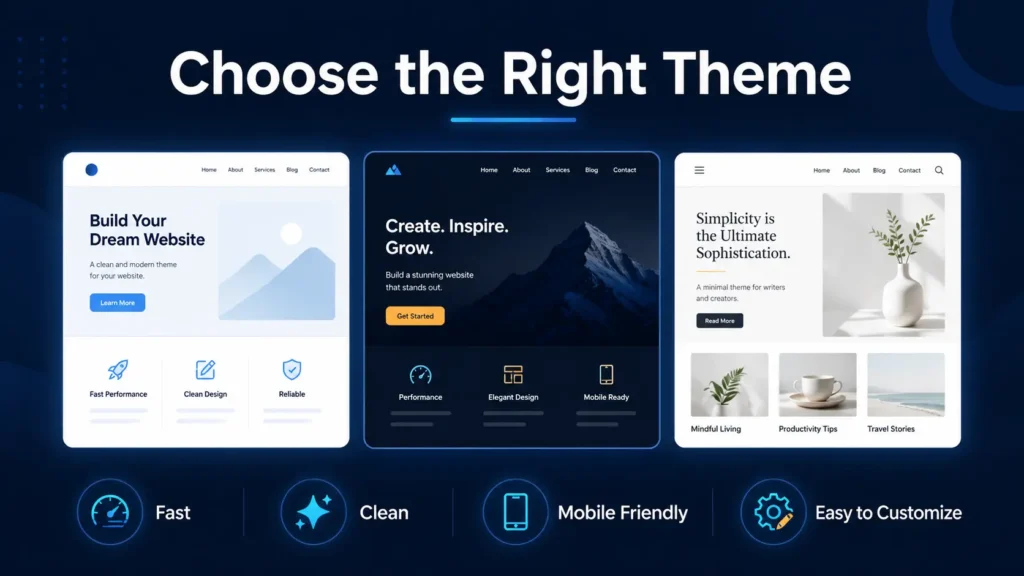
Your theme controls the design and layout of your website. A good theme should be fast, clean, mobile-friendly, and easy to customize.
Don’t choose a theme only because it looks fancy. Many fancy themes are heavy and slow.
For beginners, lightweight themes are better.
Examples of popular lightweight themes are:
GeneratePress
Astra
Kadence
Blocksy
Choose one theme and stick with it. Don’t keep changing themes again and again. It can disturb your design and waste time.
Your design should be simple. Clear text, proper spacing, readable font, and clean layout are more important than too many animations.
Step 5: Install Only Important Plugins
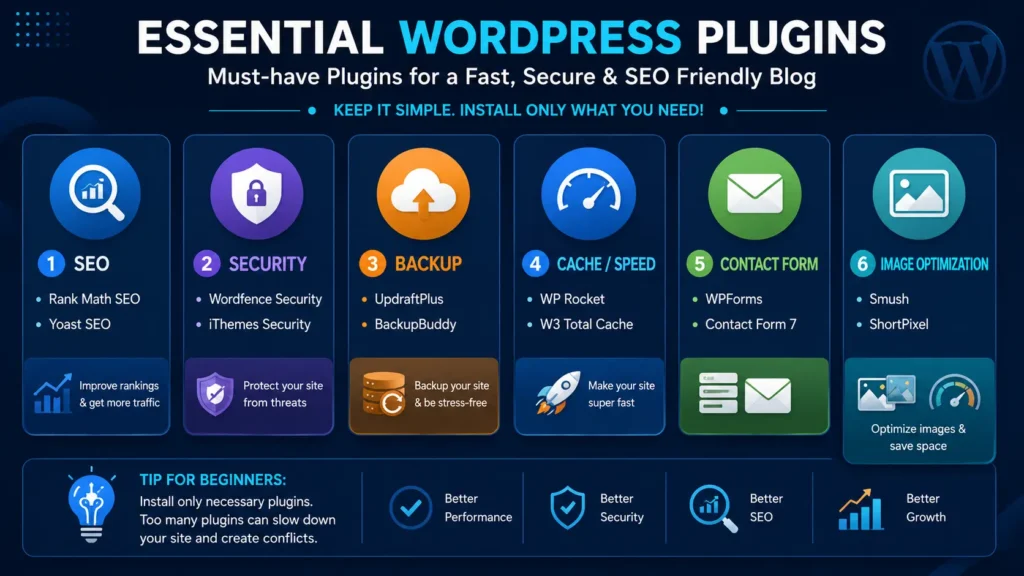
Plugins add extra features to your WordPress website. But too many plugins can make your site slow, confusing, and harder to manage.
As a beginner, install only the plugins you really need.
You may need plugins for:
- SEO
- Security
- Backup
- Cache or speed
- Contact form
- Image optimization
For SEO, you can use Rank Math or Yoast SEO. For contact forms, you can use WPForms or another simple form plugin. For speed, you can use a cache plugin depending on your hosting setup.
But don’t install every plugin that a YouTube video recommends. First ask yourself: “Do I really need this plugin right now?”
Simple words me samjhein, plugins are useful, but unnecessary plugins can create problems. Start with fewer plugins and add more only when there is a clear need.
Step 6: Create Important Pages
Before focusing only on blog posts, create your basic website pages.
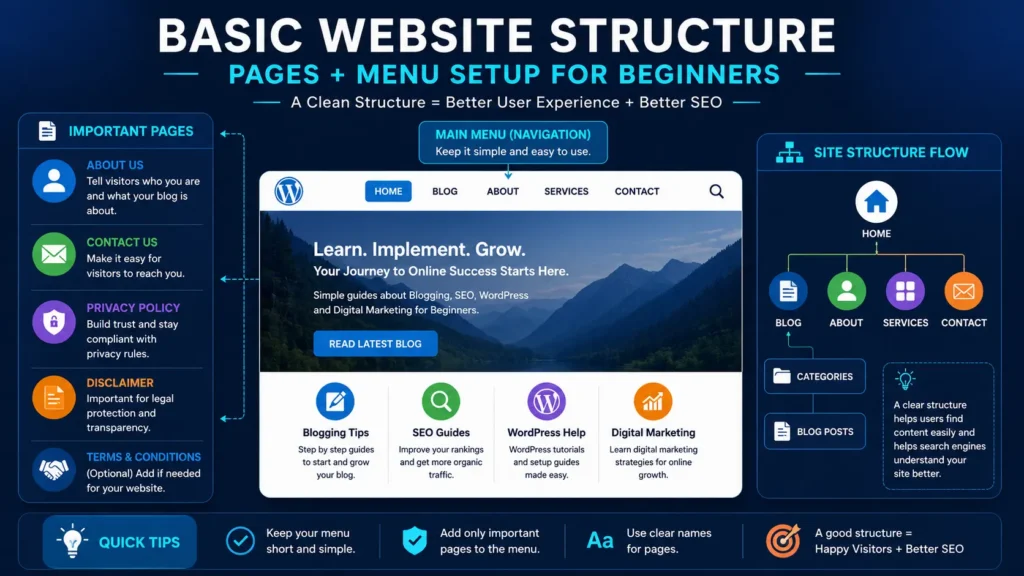
Important pages include:
About Page
Contact Page
Privacy Policy
Disclaimer
Terms and Conditions, if needed
Your About page should tell readers who you are, what your blog helps with, and why they should follow your content.
Your Contact page should allow readers to reach you. You can add a simple contact form.
Privacy Policy and Disclaimer pages are important for trust and future monetization. If you plan to use Google AdSense, affiliate links, or collect emails, these pages become more important.
A website with these pages looks more complete and trustworthy.
Step 7: Set Up Menu and Navigation
Menu helps visitors move around your website easily.
Go to:
Appearance → Menus
Or in block themes:
Appearance → Editor → Navigation
Add important pages and categories to your menu.
For a beginner blog, a simple menu can be:
Home
Blog
SEO
WordPress
Contact
Avoid adding too many menu items. A clean menu helps visitors understand your website quickly.
If users cannot find your content easily, they may leave your website.
Step 8: Create Categories Properly
Categories help organize your blog posts.
For example, if your blog is about blogging and digital marketing, you can create categories like:
SEO
Blogging
WordPress
Digital Marketing
AI Tools
But don’t create too many categories in the beginning. Start with 3–5 main categories.
SEO
Blogging
WordPress
Digital Marketing
Later, when you publish more AI-related posts, you can add AI Tools as a category.
A good category structure helps readers and also helps Google understand your content topics.
Step 9: Set Up Homepage and Blog Page
By default, WordPress may show latest posts on your homepage. But you can also create a custom homepage.
Go to:
Settings → Reading
Here you can choose what your homepage displays.
You can set:
A static homepage
A separate blog page
If you want a professional blog website, a custom homepage is better. Your homepage can include:
Hero section
Short intro
Featured posts
Categories
CTA section
Contact or help form
Your blog page can show all latest posts.
This makes your website more organized and professional.
Step 10: Install SEO Plugin and Basic Settings
SEO plugin helps you set SEO title, meta description, focus keyword, sitemap, and other important SEO settings.
If you are using Rank Math, go through the basic setup wizard carefully.
Important things to check:
Site type
Logo
Social profiles
Sitemap
Post SEO settings
Noindex settings
Make sure your important posts and pages are not set to noindex.
Also submit your sitemap in Google Search Console.
Your sitemap URL may look like:
yourdomain.com/sitemap_index.xml
This helps Google discover your pages and posts.
Step 11: Connect Google Search Console
Google Search Console is very important for bloggers. It helps you check whether your pages are indexed or not. It also shows impressions, clicks, keywords, and indexing issues.
After connecting your site with Search Console, submit your sitemap.
Then you can inspect important URLs and request indexing after publishing a new post.
Agar aap beginner ho to don’t check ranking every hour. Google takes time. Use Search Console to understand progress slowly.
Step 12: Write and Publish Your First Blog Post
After setup, don’t wait forever to make your website perfect. Publish your first helpful blog post.
Before publishing, check:
Title is clear
URL is clean
Meta description is added
Images have alt text
Headings are proper
Internal links are added
Content is useful for beginners
Your first post does not need to be perfect. But it should be helpful, readable, and original.
Blogging improves with practice.
Before writing your first post, learn keyword research for beginners so you can choose topics people are actually searching for.
Common WordPress Setup Mistakes Beginners Make
One common mistake is installing too many plugins. Beginners often think more plugins mean better website. But in reality, unnecessary plugins can slow down the website and create conflicts.
Another mistake is ignoring permalink settings. If you publish many posts with a bad URL structure and change it later, it can create SEO issues.
Many beginners also choose heavy themes because they look attractive. But speed and readability matter more than fancy design.
Some people forget basic pages like About, Contact, Privacy Policy, and Disclaimer. This makes the website look incomplete.
Another mistake is changing design again and again. Design is important, but content is more important. Once your website looks clean and usable, focus more on writing helpful posts.
Practical Tips for Beginners
Start simple. Don’t try to build a perfect website in one day.
Use a clean theme, limited plugins, and clear categories. Write helpful content and improve slowly.
Keep your homepage clean. Don’t add too many colors, animations, or sections.
Use the same branding style for images. This makes your blog look like a real brand.
Also, keep learning WordPress step by step. You don’t need to master everything on day one.
This WordPress setup guide for beginners is meant to give you a clear starting direction. Once your basic setup is done, your main focus should be content creation and SEO.
FAQs About WordPress Setup Guide for Beginners
Need Help Setting Up Your WordPress Blog?
If you are a beginner and WordPress setup still feels confusing, don’t worry. Many new bloggers feel the same in the beginning.
You can start slowly by setting up the basics first: theme, pages, menu, plugins, SEO settings, and Google Search Console.
But if you need simple guidance for setting up your first WordPress blog, you can contact DigitalBhai for beginner-friendly help.
The goal is not to make your website fancy. The goal is to make it clean, useful, easy to read, and ready for blogging.
Conclusion
WordPress setup may look difficult in the beginning, but it becomes simple when you follow the right steps.
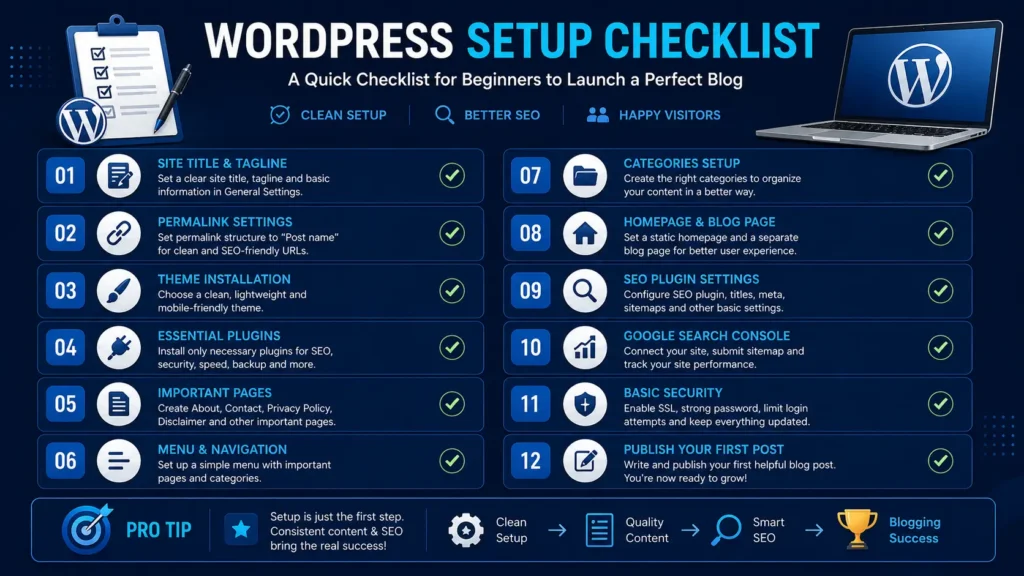
First, set your site title, tagline, permalink, theme, plugins, pages, menu, categories, homepage, SEO plugin, and Search Console. After that, start writing useful content.
Remember, your website does not need to be perfect from day one. It should be clean, simple, fast, and helpful.
Agar aap beginner ho to focus on learning one step at a time. Don’t compare your new blog with big websites. They also started from zero.
This WordPress setup guide for beginners is your starting point. Build your blog the easy way, keep improving, and stay consistent.
If you are setting up your first WordPress blog, tell me in the comments:
Which step feels most confusing to you — theme, plugin, homepage, SEO, or Search Console?
After setting up WordPress, your next focus should be writing helpful blog posts, learning basic SEO, and improving your content step by step.
Bookmark this guide because in the next post, we can understand common blogging mistakes beginners should avoid.