
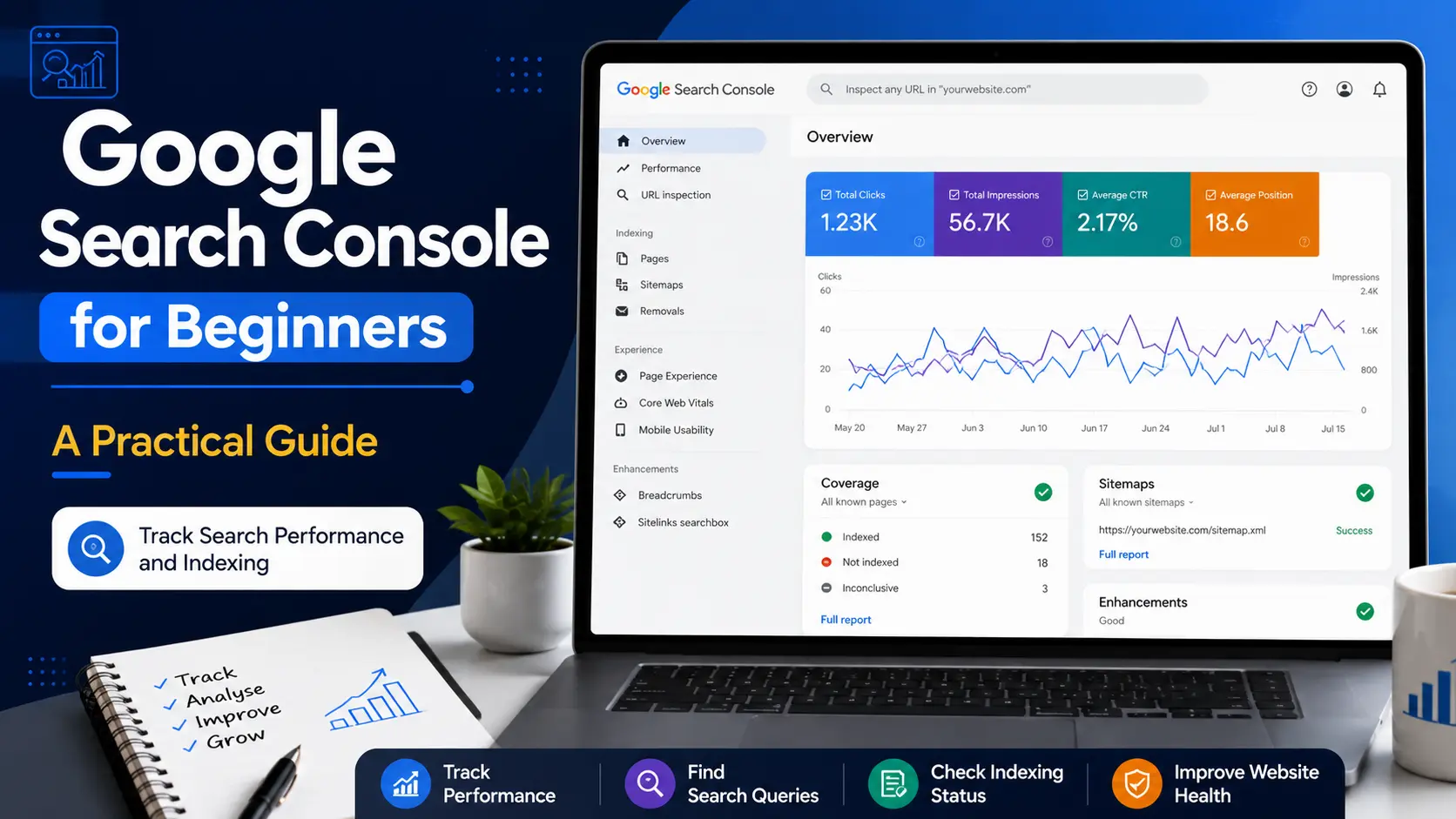
Publishing a blog post is only the beginning. After the post goes live, you also need to understand whether Google has discovered it, which search queries are showing it and whether people are clicking on it.
Google Search Console for beginners can initially look confusing because it contains several reports, numbers and indexing messages. However, a new blogger does not need to understand every advanced feature to start using it effectively.
Google Search Console is a free service that helps website owners monitor and troubleshoot their site’s presence in Google Search.
It can show whether Google can find and crawl a website, provide search-performance data and report certain indexing or security-related issues.
For a beginner, its most useful information usually includes clicks, impressions, search queries, pages receiving search visibility and indexing status.
This data can help you understand which topics are beginning to receive visibility and where further improvement may be needed.
The URL Inspection tool can also show what Google knows about a specific page, allow you to test the live URL and submit an indexing request for a single page when appropriate.
In this practical guide, you will learn how to read the main Search Console reports, understand clicks and impressions, analyse queries and pages, inspect a published URL, check sitemap status and create a simple monthly review routine.
सरल शब्दों में, हम Search Console के confusing numbers को practical information में बदलना सीखेंगे—ताकि आप जल्दबाजी में बदलाव करने के बजाय सही data के आधार पर अगला कदम तय कर सकें।
Google Search Console for Beginners: What It Does
Google Search Console is a free tool that helps website owners understand how their site appears and performs in Google Search.
It provides information about search performance, indexing, URL Inspection and sitemaps.
The tool does not improve rankings automatically. It provides data that can help you identify genuine problems and make better SEO decisions.
For a beginner blogger, its most useful areas are:
- Performance
- URL Inspection
- Page Indexing
- Sitemaps
You do not need to learn every report immediately. Start with these core features and expand your understanding as your website grows.
Why Should Beginners Use Search Console?
Without Search Console, you may know that an article has been published, but you may not know whether Google has found it or which queries are showing it.
Search Console can help answer practical questions such as:
- Is my published page indexed?
- Which pages are getting search impressions?
- What are people searching before seeing my website?
- Which articles are receiving clicks?
- Has Google encountered an indexing problem?
- Is my sitemap being read successfully?
This information is especially useful for a new blog because visible traffic may initially be low. Impressions and query data can show early search visibility even before a page starts receiving regular clicks.
If you are still learning the overall process, this SEO basics guide explains how crawling, indexing, content and links work together.
However, small changes should not lead to immediate content rewrites. Search data becomes more useful when you review patterns over a meaningful period.
Google Search Console vs Google Analytics
Google Search Console and Google Analytics serve different purposes.
Search Console mainly explains what happens before a visitor reaches your website through Google Search. It shows search queries, impressions, clicks, average CTR, average position and indexing information.
Google Analytics mainly helps you understand what visitors do after reaching your website. It can show traffic, pages visited, engagement, devices and other user activity.
For example:
Search Console may tell you that a blog post received 500 impressions and 20 clicks from Google Search.
Google Analytics can help you understand what those visitors did after opening the post.
The tools support each other, but their numbers may not always match because they measure different stages and use different processing methods.
Select the Correct Search Console Property
A property represents the website or part of a website whose data you want to view.
Before analysing any report, check the property name shown at the top-left of Search Console. Using the wrong property can make reports look incomplete or empty.
The two common property types are:
Domain Property
A Domain property can include different protocols and subdomains, such as:
httphttpswww- non-
www
It normally requires DNS verification.
URL-Prefix Property
A URL-prefix property covers only URLs beginning with the exact prefix that was added.
For example, a property beginning with https://example.com/ will not automatically include a separate http or www version.
Google requires ownership verification because Search Console displays private search information and provides access to actions that can affect a site’s presence in Google Search.
Understanding the Overview Dashboard
The Overview page gives a summary of important Search Console information.
Depending on the website and available data, it may show:
- Search performance
- Indexing information
- Experience or enhancement reports
- Recommendations and notifications
The Overview page is useful for noticing unusual changes or warnings, but it does not provide enough detail for a complete analysis. You usually need to open the relevant report to understand what happened.
For example, if the Overview page shows an increase in indexed pages, open the Page Indexing report for more context. If performance changes, open the Performance report and check the affected queries or pages.
Treat the Overview page as a starting dashboard, not as the final answer.
Understanding the Performance Report
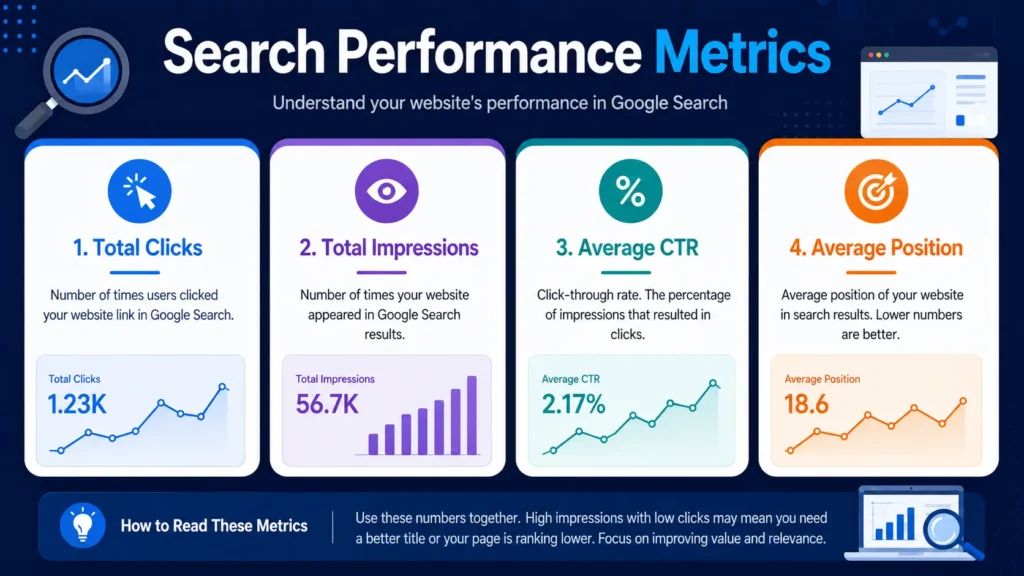
The Performance report explains how your website is appearing in Google Search.
You can change the date range, compare periods and view data using dimensions such as queries, pages, countries, devices and search appearance.
For a beginner, the most useful starting tabs are:
- Queries
- Pages
- Dates
The four main metrics are Total Clicks, Total Impressions, Average CTR and Average Position.
What Are Total Clicks?
A click is generally recorded when someone clicks a Google Search result that leads to your website.
Clicks represent actual visits from Google Search, although they do not explain what the visitor did after arriving on the website.
A new blog may receive impressions before it receives many clicks. That is normal because a page may be appearing at a lower position or for queries where users choose another result.
What Are Total Impressions?
An impression is counted when a link or supported search element from your website is shown to a user on Google, according to the visibility rules of that result type.
In simple terms, impressions show how often your pages received an opportunity to be seen.
An increase in relevant impressions may be an early sign that Google is beginning to understand and display your content. It does not guarantee future clicks or rankings, but it provides useful visibility data.
What Is Average CTR?
CTR means click-through rate.
It is calculated as:
Clicks ÷ Impressions × 100
Suppose a page receives 100 impressions and 5 clicks. Its CTR would be 5%.
A low CTR does not always mean the title is poor. The page may be showing at a lower search position, appearing for broad queries or receiving impressions from searches that are only partly relevant.
Before changing the SEO title or meta description, check the related queries, average position and amount of data.
When a genuine improvement is needed, this on-page SEO guide explains how titles, headings, content and internal links can be reviewed together.
What Is Average Position?
Average position shows the average topmost position at which your website or page appeared across the included searches.
Position 1 is higher than position 10, but the number should not be treated as one fixed ranking. A page may appear at different positions for different queries, locations, devices and times.
Search Console may also aggregate data differently at property and page levels. Therefore, it is usually more useful to study the trend in impressions and clicks alongside position rather than focusing only on a single position number.
How to Analyse Search Queries
The Queries tab shows search terms that caused your website to appear in Google Search.
This can help you understand whether Google is associating a page with the correct topic.
Understanding the search intent behind a query can also help you judge whether your page is giving users the type of answer they expect.
When reviewing queries, look for three things.
Relevant Queries
These searches match the purpose of your article. They indicate that Google is connecting the page with an appropriate topic.
Unexpected but Useful Queries
Sometimes a page appears for a relevant question that you did not directly target.
This may reveal an opportunity to improve an existing section, answer the question more clearly or create a supporting article.
Irrelevant Queries
A few irrelevant impressions are not necessarily a problem. However, if most visible queries do not match the article’s purpose, review the page title, headings and overall search intent.
Do not add every query to the article. Only make changes when the query reflects a genuine reader need and fits the page naturally.
How to Analyse Individual Pages
The Pages tab shows which URLs are receiving impressions and clicks.
A useful beginner workflow is:
- Open Performance → Search results.
- Select the Pages tab.
- Click the URL you want to analyse.
- Open the Queries tab.
- Review which searches are showing that specific page.
This helps you avoid mixing the performance of several different articles.
For example, if you select a keyword-research article and then open Queries, you can see whether it appears for beginner keyword questions, tool-related searches or unrelated terms.
Google’s official guidance also recommends using the Queries and Pages dimensions to examine popular searches and the URLs shown for particular queries.
How to Inspect a Specific URL
URL Inspection is used when you want information about one exact page.
Paste the complete page URL into the inspection bar at the top of Search Console.
The initial result shows information about Google’s indexed version of that URL. It is not automatically a live test of the current webpage.
URL Is on Google
This generally means the URL has been indexed and is eligible to appear in Google Search.
However, it does not guarantee that the page will appear for every search or receive traffic.
URL Is Not on Google
This means the tested URL is not currently indexed.
Open the Page Indexing details to understand the reported reason. The page may be new, blocked, duplicated, redirected or excluded for another reason.
Test Live URL
Use Test Live URL when you want to check whether Google can currently access the latest live version of the page.
A successful live test means the page may be indexable, but it still does not guarantee indexing. Some conditions, including canonical selection, cannot be fully predicted by the live test.
When to Request Indexing
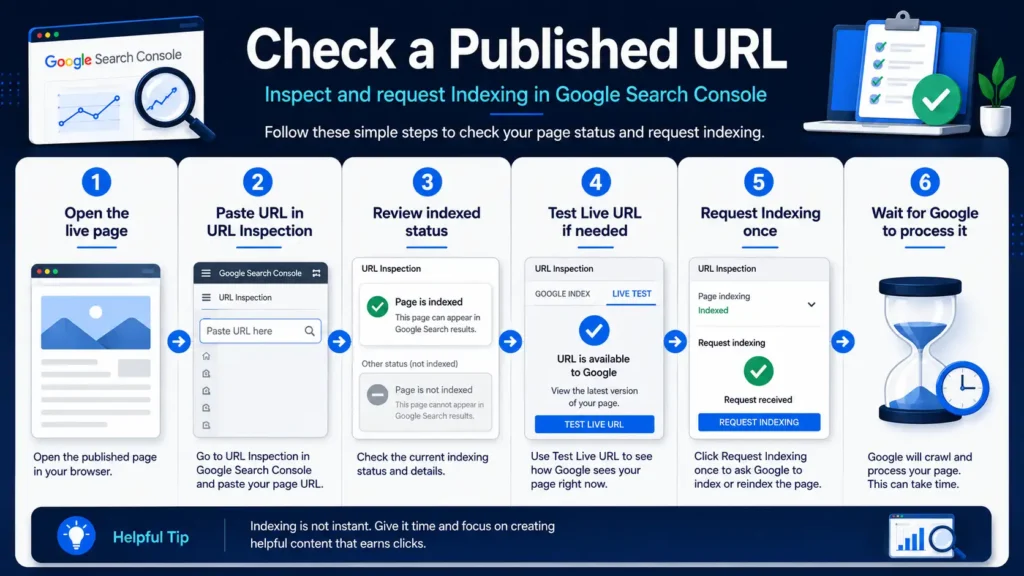
Request indexing after publishing an important new page or making a meaningful update to an existing page.
A practical sequence is:
- Open the live page and confirm that it loads properly.
- Check the title, images and internal links.
- Inspect the full URL in Search Console.
- Run the live test if necessary.
- Click Request Indexing once.
Requesting indexing places the page into Google’s crawling queue. It does not guarantee immediate crawling, indexing or ranking.
Avoid submitting the same unchanged URL repeatedly. If the request was successful, wait for Google to process it unless you later make an important correction.
How the Sitemap Report Works
A sitemap is a file that lists pages you want search engines to know about.
In WordPress, an SEO plugin may generate the sitemap automatically. Search Console does not host the sitemap file; you submit the location of the sitemap that already exists on your website.
The Sitemaps report can show whether Google successfully fetched and read the submitted sitemap.
Common statuses include:
- Success: Google fetched and processed the sitemap.
- Has errors: Google read the sitemap but found one or more problems.
- Couldn’t fetch: Google could not retrieve the sitemap.
A successful sitemap submission does not guarantee that every listed URL will be crawled or indexed. It helps Google discover URLs and lets you monitor sitemap-processing issues.
Once the correct sitemap shows Success, there is usually no need to submit it repeatedly after every new post.
Understanding the Page Indexing Report
The Page Indexing report provides a broader view of indexed and non-indexed URLs known for the property.
The most important beginner lesson is this:
Not every non-indexed URL is an error.
Google may exclude URLs because they are:
- Redirects
- Duplicate versions
- Alternate pages with a canonical
- Blocked intentionally
- Pages marked with
noindex - URLs that Google has discovered but not indexed yet
Your goal should not be 100% indexing of every URL. The goal is to ensure that important, useful and canonical pages can be indexed.
For a broader explanation of crawling, indexing, sitemaps and website health, read this technical SEO guide for beginners.
The Page Indexing report may also show older crawl information. When checking one specific post, use URL Inspection to see details about that exact page. Google explicitly notes that complete indexing of every known URL should not be expected.
A Simple Monthly Search Console Routine
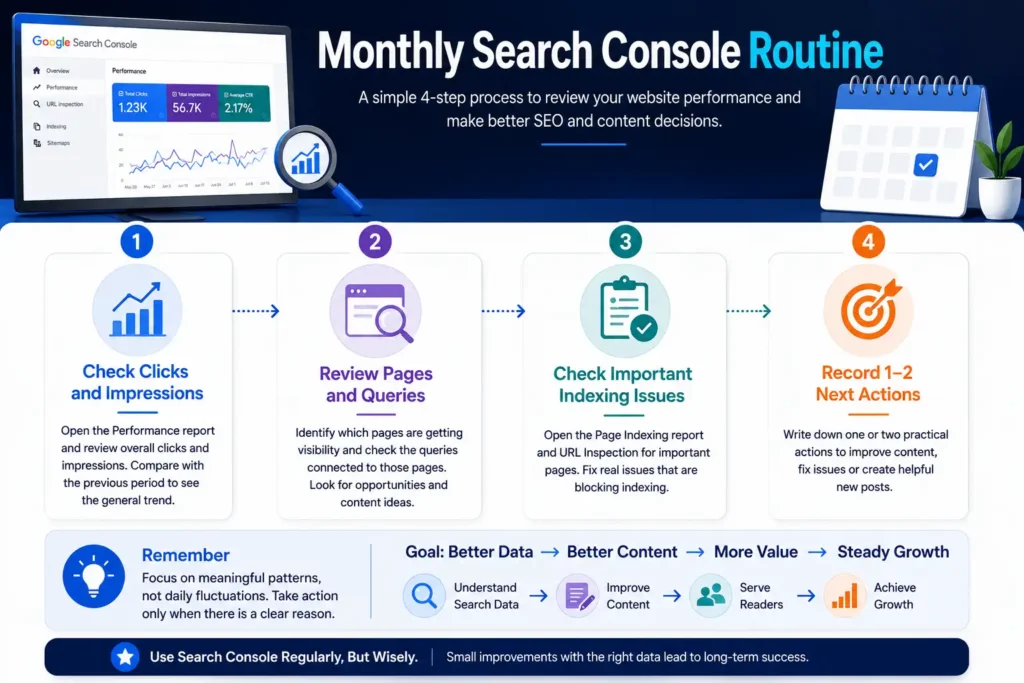
Beginners do not need to analyse Search Console every day.
Once a month, spend a short session reviewing:
- Whether clicks and relevant impressions are generally increasing, stable or declining.
- Which pages are receiving the most visibility.
- Which queries are showing important posts.
- Whether any useful page has an indexing problem.
- Which existing article may need improvement.
- Which relevant question could become a future post.
These findings can also support your blog content strategy by helping you prioritise topics using real search data.
Record only meaningful observations and one or two next actions.
For example:
The Search Intent post is receiving impressions for beginner queries but few clicks. Continue monitoring because the data is still limited, and review its title only after a larger pattern develops.
This is more useful than changing multiple pages every week.
Common Search Console Mistakes
Checking Data Too Frequently
Daily checking can create unnecessary stress, especially when the website has low traffic. Small movements are normal and may not represent a meaningful trend.
Treating Every Impression as a Ranking Success
An impression shows visibility, not a guaranteed high position or visit. Always review clicks, position and query relevance together.
Requesting Indexing Repeatedly
Repeated requests do not force Google to index the page faster. Submit once after publication or an important update, then allow time for processing.
Expecting Every URL to Be Indexed
Redirects, duplicates, archives and intentionally excluded URLs may remain outside the index for valid reasons.
Changing Content Based on Very Little Data
A handful of impressions is usually not enough evidence for a major rewrite. Wait for clearer patterns and consider the article’s age, position and query relevance.
Focusing Only on Average Position
Average position can hide differences between queries. Impressions, clicks and query intent often provide more useful context.
Practical Search Console Checklist
Before completing a monthly review, confirm that:
- The correct property is selected.
- Important posts are loading normally.
- The sitemap status is successful.
- Priority pages have been inspected when necessary.
- Queries and pages have been reviewed separately.
- Changes are based on meaningful patterns.
- Indexing requests are not being repeated without reason.
- At least one practical next action has been recorded.
Google Search Console becomes useful when its data leads to calm and relevant decisions. The goal is not to react to every number, but to understand how Google is discovering, displaying and processing your website.
Frequently Asked Questions About Google Search Console
Is Google Search Console free to use?
Yes. Google Search Console is a free service for website owners.
You need to add your website as a property and verify ownership before accessing its private search-performance and indexing information. A beginner can use its main reports without coding knowledge.
What is the difference between clicks and impressions?
An impression generally means that a result from your website appeared in Google Search according to Google’s counting rules.
A click is recorded when a user clicks that result and visits your website.
A page may receive several impressions but only a few clicks, especially when it appears at a lower position or for searches where another result looks more relevant.
How long does Google take to index a new page?
There is no fixed indexing time.
A new or updated page may be processed within a few days, but sometimes it can take longer. Requesting indexing sends the URL to Google’s crawling queue, but it does not guarantee immediate crawling or indexing.
After submitting the request once, avoid sending it repeatedly without making a meaningful change.
Why do URL Inspection and the Page Indexing report show different information?
URL Inspection focuses on one specific URL and can provide more current details about that page.
The Page Indexing report gives a broader property-level overview and may take time to reflect recent changes. Therefore, a newly indexed page may appear correctly in URL Inspection before the broader report updates.
For checking the latest status of one important post, URL Inspection is generally more useful.
How often should beginners check Search Console?
A detailed monthly review is enough for most new blogs.
You can also check it after publishing an important page, receiving an indexing warning or noticing an unusual performance change. However, checking the reports every day and changing content after small fluctuations can lead to poor decisions.
Give new pages enough time to collect meaningful data.
Conclusion
Google Search Console helps you understand how Google is discovering, indexing and displaying your website.
You do not need to master every report when you are starting. Focus first on the Performance report, Queries, Pages, URL Inspection, Sitemaps and Page Indexing.
Clicks show visits from Google Search, while impressions show opportunities for your content to appear. Queries explain what people searched, and the Pages report shows which URLs received visibility.
When checking a specific post, use URL Inspection to review its status and request indexing when appropriate. Use the broader Page Indexing report to identify patterns and important issues across the website.
Most importantly, do not react to every small change. Review enough data, understand the context and take only one or two meaningful actions at a time.
Search Console becomes valuable when its reports help you improve useful content, strengthen related topics and make calmer SEO decisions.
The goal is not to change something every month. The goal is to understand what the data is telling you and take action only when there is a clear reason.