
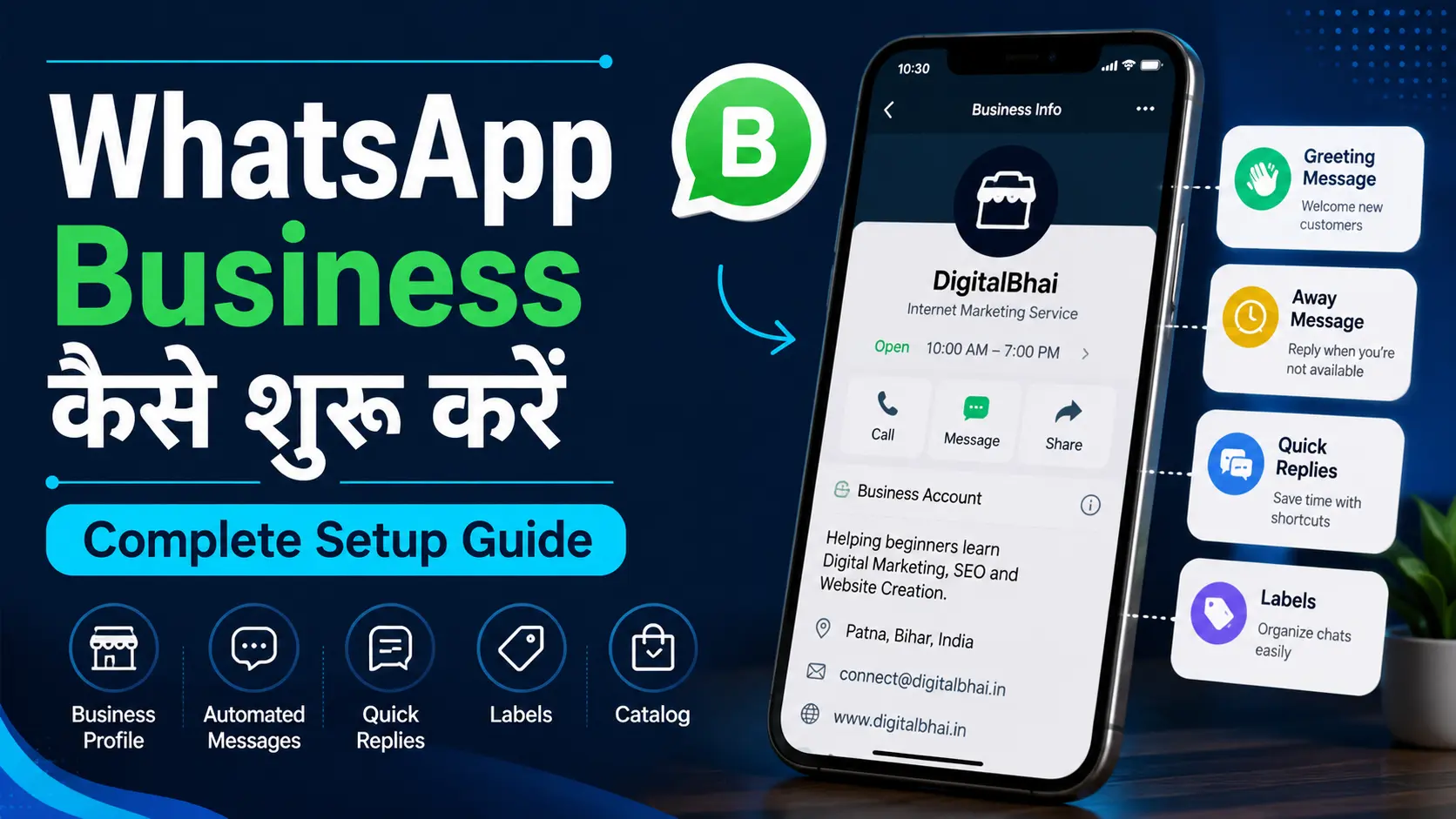
आज छोटे व्यवसाय, freelancers, creators और local service providers अपने customers से बात करने के लिए WhatsApp का काफी उपयोग करते हैं। लेकिन personal WhatsApp पर business enquiries मैनेज करने से जरूरी messages बिखर सकते हैं, working hours स्पष्ट नहीं रहते और बार-बार एक जैसे उत्तर लिखने पड़ सकते हैं।
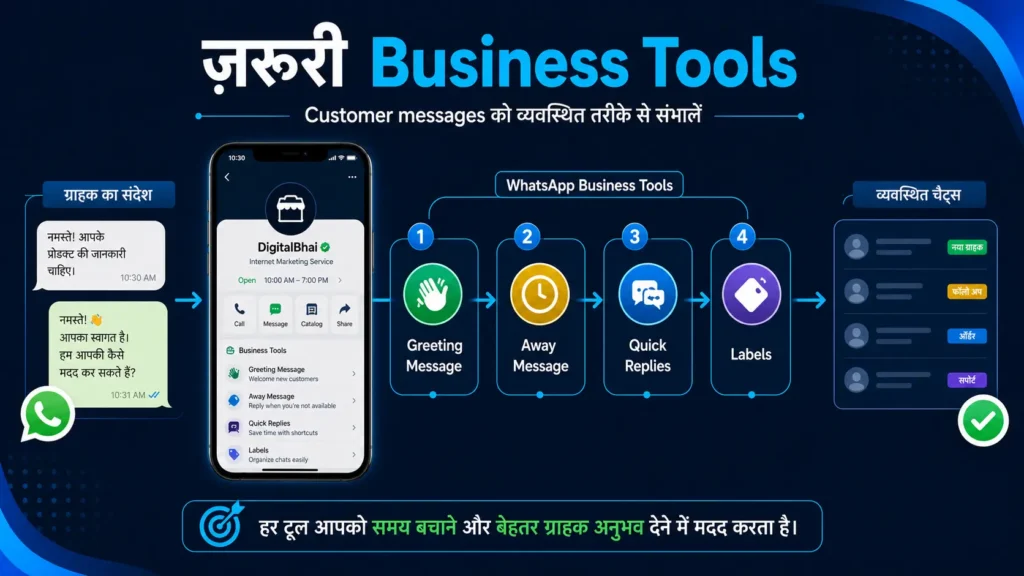
WhatsApp Business App customer communication को अधिक व्यवस्थित बनाने के लिए Business Profile, Greeting Message, Away Message, Quick Replies, Labels और Catalog जैसे tools उपलब्ध कराता है।
हालांकि केवल app install कर लेने से business professional नहीं बन जाता। सही mobile number चुनना, profile में सही जानकारी भरना, messaging tools को जरूरत के अनुसार configure करना और customer के data तथा privacy का ध्यान रखना भी जरूरी है।
इस guide में आप सीखेंगे कि WhatsApp Business कैसे शुरू करें, account setup से पहले क्या तैयारी करें, जरूरी features को कैसे इस्तेमाल करें और customers के साथ communication शुरू करने से पहले पूरे setup को कैसे test करें।
- WhatsApp Business क्या है और यह किसके लिए उपयोगी है?
- WhatsApp Messenger, Business App और Business Platform में अंतर
- Setup से पहले क्या तैयारी करें?
- Step 1: Official WhatsApp Business App download करें
- Step 2: Phone number register और verify करें
- Step 3: Two-step verification से account सुरक्षित करें
- Step 4: Business Profile सही तरीके से पूरा करें
- Step 5: Greeting Message का सही उपयोग करें
- Step 6: Away Message से realistic expectation set करें
- Step 7: Quick Replies से repeated answers बचाएँ
- Step 8: Labels से chats organize करें
- Step 9: Short Link और QR Code का उपयोग करें
- Catalog कब बनाना चाहिए?
- Practical use cases
- WhatsApp Business की सीमाएँ समझें
- Customer data और messages संभालते समय सावधानी
- Common mistakes जिन्हें शुरुआत में रोकना चाहिए
- WhatsApp Business कैसे शुरू करें: Quick Setup Navigation
- Setup public करने से पहले final test
- अक्सर पूछे जाने वाले सवाल
- क्या WhatsApp Business App पूरी तरह free है?
- क्या personal WhatsApp और WhatsApp Business के लिए एक ही number इस्तेमाल कर सकते हैं?
- क्या personal WhatsApp की पुरानी chats Business App में transfer हो सकती हैं?
- क्या WhatsApp Business शुरू करने से sales बढ़ जाती हैं?
- क्या customers को promotional messages भेज सकते हैं?
- निष्कर्ष
- अब अपना WhatsApp Business Setup शुरू करें
WhatsApp Business क्या है और यह किसके लिए उपयोगी है?
WhatsApp Business, Meta का ऐसा app है जिसे छोटे व्यवसायों और independent professionals के customer communication को व्यवस्थित करने के लिए बनाया गया है।
इसमें सामान्य WhatsApp जैसी chat और calling सुविधाओं के साथ Business Profile, Greeting Message, Away Message, Quick Replies, Labels, Catalog, Short Link और QR Code जैसे business tools मिलते हैं।
App download करना free है, लेकिन mobile data charges और कुछ paid features अलग हो सकते हैं।
इन tools की current जानकारी के लिए WhatsApp Business के official features भी देख सकते हैं।
यह local दुकानदार, tutor, freelancer, consultant, home-based seller, salon, bakery, repair service या creator के लिए उपयोगी हो सकता है।
WhatsApp के साथ website, social media और दूसरे online channels business के लिए कैसे काम करते हैं, इसे समझने के लिए आप Digital Marketing for Beginners guide भी पढ़ सकते हैं।
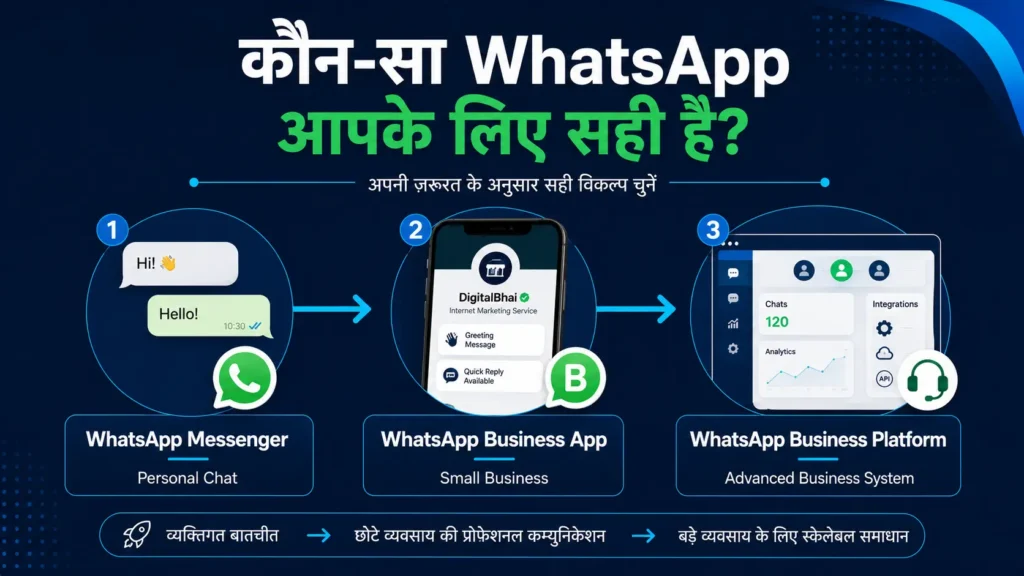
WhatsApp Messenger, Business App और Business Platform में अंतर
WhatsApp Messenger personal conversations के लिए है।
WhatsApp Business App छोटे व्यवसायों के लिए है, जहाँ एक व्यक्ति या छोटी team built-in tools की मदद से chats संभाल सकती है।
WhatsApp Business Platform, जिसे पहले API के रूप में जाना जाता था, बड़े scale पर automation, CRM integration, chatbot या multi-agent support जैसी जरूरतों के लिए है।
शुरुआत करने वाले local business या freelancer को आमतौर पर Business App से शुरू करना चाहिए।
Platform की जरूरत तब हो सकती है जब message volume बहुत बढ़ जाए, कई agents support दें या external software से integration जरूरी हो। Foundation setup के लिए API खरीदना आवश्यक नहीं है।
Setup से पहले क्या तैयारी करें?
पहले तय करें कि business के लिए कौन-सा phone number इस्तेमाल होगा। Personal और business account एक ही device पर चल सकते हैं, लेकिन दोनों के लिए अलग phone numbers चाहिए।
एक ही number को WhatsApp Messenger और WhatsApp Business App में एक साथ active नहीं रखा जा सकता।
यदि customers की संख्या बढ़ने की उम्मीद है, तो अलग business number practical रहता है। इससे personal chats अलग रहती हैं और future में team access देना आसान होता है।
Existing personal number को business account में migrate करना संभव है, लेकिन migration से पहले chat backup बनाना समझदारी है। WhatsApp के अनुसार उपलब्ध backup से messages, media और contacts को Business App में transfer किया जा सकता है।
Business name, logo या साफ profile photo, category, short description, working hours, email और website पहले से तैयार रखें। केवल वही जानकारी public करें जो customers के लिए जरूरी है।
घर से business चलाने वाले व्यक्ति को पूरा residential address दिखाने की जगह service area या general location बताना अधिक सुरक्षित हो सकता है।
Step 1: Official WhatsApp Business App download करें
Android पर Google Play Store और iPhone पर Apple App Store खोलें। “WhatsApp Business” search करें और WhatsApp की official listing verify करें। Unofficial apps, modified APK या third-party download websites से app install न करें।
WhatsApp Business free-to-download है, पर सभी features free नहीं होते और कुछ सुविधाएँ market या account eligibility के अनुसार बदल सकती हैं।
किसी tutorial में दिखा feature आपके app में न दिखाई दे तो app update, device compatibility और regional availability check करें।
Interface Android, iPhone और app version के अनुसार थोड़ा बदल सकता है; business settings सामान्यतः Tools tab या Settings के भीतर मिलती हैं।
Step 2: Phone number register और verify करें
Country के रूप में India चुनने पर +91 code आएगा। इसके बाद वह active number दर्ज करें जिसे business account के लिए रखना चाहते हैं।
WhatsApp verification के लिए छह अंकों का code SMS से भेज सकता है; कुछ स्थितियों में call option भी उपलब्ध हो सकता है। यह code किसी से share न करें।
यदि उसी number पर पहले WhatsApp Messenger चल रहा है, तो setup के दौरान account को Business App में move करने का option मिल सकता है।
Backup उपलब्ध होने पर messages, media और contacts restore किए जा सकते हैं। Migration से पहले check करें कि backup पूरा है और phone में पर्याप्त storage है।
नया अलग number इस्तेमाल कर रहे हैं तो personal WhatsApp चलता रहेगा। दोनों apps एक device पर रह सकते हैं, पर numbers अलग होने चाहिए। Long-term number चुनें, क्योंकि बाद में number बदलने से QR code, visiting card और social profiles update करने पड़ सकते हैं।
Step 3: Two-step verification से account सुरक्षित करें
Registration के बाद WhatsApp Settings → Account → Two-step verification में जाकर छह अंकों का PIN set करें। यह optional feature है, लेकिन business account के लिए उपयोगी security layer है।
ऐसा PIN चुनें जो आसानी से guess न हो। Recovery के लिए active email जोड़ें और उस email पर भी strong password तथा two-factor authentication रखें। OTP, verification code या PIN को team group, note app या customer chat में save न करें।
Step 4: Business Profile सही तरीके से पूरा करें
Tools tab → Profile में जाकर Business Profile edit करें। App version के अनुसार menu path थोड़ा बदल सकता है। Profile में सामान्यतः business name, category, description, hours, address, email और website जैसे fields मिलते हैं।
Business name वही रखें जिससे customers आपको पहचानते हैं। अनावश्यक keywords, emojis, “No.1” या misleading claims न जोड़ें।
Description में साफ लिखें कि आप क्या product या service देते हैं और customer को किस प्रकार की मदद मिल सकती है।
Working hours वास्तविक रखें। यदि reply सुबह 10 बजे से शाम 7 बजे तक मिलता है, तो 24 hours open न दिखाएँ। Address तभी जोड़ें जब customer को physical location पर आना हो।
Website और email वही डालें जिन्हें आप monitor करते हैं। Profile photo में साफ logo, shop front या professional identity image रखें, जो छोटे circle में भी पहचानने योग्य हो।
Step 5: Greeting Message का सही उपयोग करें
Greeting Message customer को automatic welcome भेज सकता है जब वह पहली बार message करे या लंबे gap के बाद conversation शुरू करे।
WhatsApp के अनुसार, पिछले 14 दिनों में message कर चुके customer को greeting दोबारा नहीं भेजी जाती।
Tools tab → Greeting message में इसे enable करें और message छोटा रखें:
“नमस्ते! हमसे संपर्क करने के लिए धन्यवाद। कृपया अपना सवाल संक्षेप में लिखें। हम working hours में उत्तर देंगे।”
Greeting का उद्देश्य customer को acknowledge करना है, तुरंत sale करना नहीं। इसमें लंबी service list, कई links या aggressive offer जोड़ने से पहला अनुभव spam जैसा लग सकता है।
Step 6: Away Message से realistic expectation set करें
Away Message working hours के बाहर आने वाले message का automatic response है। इसका काम customer को बताना है कि message मिल गया है और human reply कब मिल सकता है।
Tools tab → Away message में text लिखें और schedule चुनें।
उदाहरण:
“आपका message मिल गया है। हमारी support timing सोमवार से शनिवार, सुबह 10 बजे से शाम 7 बजे तक है। हम अगले working period में उत्तर देंगे।”
“हम तुरंत reply करेंगे” तभी लिखें जब यह वास्तव में संभव हो। गलत response-time promise customer trust को नुकसान पहुँचा सकता है।
Step 7: Quick Replies से repeated answers बचाएँ
Quick Replies पहले से तैयार उत्तर हैं, जिन्हें shortcut से जल्दी भेजा जा सकता है। यह price list, service process, location, appointment timing या required documents जैसे repeated questions में उपयोगी है। Current app में Tools tab → Quick replies से नया message और shortcut बनाया जा सकता है।
उदाहरण के लिए /timing से working hours और /price से basic pricing information भेजी जा सकती है।
Reply भेजने से पहले उसे customer के context के अनुसार edit करें।
Outdated price, expired offer या गलत link रहने से बचाने के लिए Quick Replies को नियमित रूप से review करें।
Step 8: Labels से chats organize करें
Labels chats को status के अनुसार organize करने में मदद करते हैं। “New Enquiry”, “Quotation Sent”, “Payment Pending”, “Order Confirmed” और “Completed” जैसे labels बनाए जा सकते हैं। Official guidance के अनुसार app में अधिकतम 20 labels बनाए जा सकते हैं।
Workflow सरल रखें। Local bakery के लिए “New Order”, “Advance Pending”, “Preparing” और “Delivered” पर्याप्त हो सकते हैं। Freelancer के लिए “New Lead”, “Proposal Sent” और “Project Closed” उपयोगी रहेंगे।
Labels complete CRM नहीं हैं। उनमें detailed financial, medical या highly sensitive notes न रखें। केवल इतना status रखें जितना conversation manage करने के लिए जरूरी है।
Step 9: Short Link और QR Code का उपयोग करें
WhatsApp Business आपके account के लिए Short Link generate करता है। इसे website, Google Business Profile, email signature या social media bio में लगाया जा सकता है।
QR Code shop counter, invoice या visiting card पर उपयोगी हो सकता है। Customer number save किए बिना chat खोल सकता है।
Tools tab → Short link में link और QR Code मिल सकता है। Default message भी जोड़ा जा सकता है, जैसे “नमस्ते, मुझे आपकी service के बारे में जानकारी चाहिए।”
Link public करने से पहले दूसरे phone से test करें। Number बदलने या link reset करने पर पुराने printed QR codes काम करना बंद कर सकते हैं।
Catalog कब बनाना चाहिए?
Catalog में products या services को image, name, price और description के साथ दिखाया जा सकता है। यह boutique, bakery, handmade products, repair packages या consulting services के लिए उपयोगी हो सकता है।
केवल active products और clear information रखें। Out-of-stock item, misleading image या hidden charges customer confusion पैदा कर सकते हैं। Detailed Catalog creation, Payments और order workflow को अलग guide में cover करना बेहतर होगा।
Practical use cases
एक tutor Business Profile में subjects और class timing लिख सकता है, Quick Replies से fee structure भेज सकता है और Labels से “New Enquiry”, “Demo Scheduled” तथा “Joined” status manage कर सकता है।
Home bakery Short Link को Instagram bio में जोड़ सकती है, Catalog में current options दिखा सकती है और Labels से advance payment तथा delivery status track कर सकती है। Freelancer Quick Replies में service process रख सकता है, लेकिन final quotation customer की जरूरत देखकर ही देना चाहिए।
WhatsApp Business की सीमाएँ समझें
WhatsApp Business App छोटा communication tool है, complete CRM, accounting software या legal record-management system नहीं।
बहुत अधिक chats, कई employees, advanced automation या CRM integration की जरूरत होने पर Business Platform या किसी दूसरे system की आवश्यकता पड़ सकती है।
हर feature सभी accounts या countries में उपलब्ध नहीं होता। कुछ tools paid, eligibility-based या phased rollout में हो सकते हैं।
App install करने से enquiries, sales या customer trust की guarantee नहीं मिलती। परिणाम service quality, response discipline और honest information पर निर्भर करते हैं।
Customer data और messages संभालते समय सावधानी
Customer का phone number, name, address, order details और chat history personal data हो सकते हैं। ऐसे digital personal data से संबंधित कानूनी framework को समझने के लिए Digital Personal Data Protection Act, 2023 का official text देखा जा सकता है।
Act और संबंधित Rules के अलग-अलग provisions चरणबद्ध समयसीमा में लागू किए गए हैं। इसलिए किसी specific business पर लागू obligations उसके data use, processing activities और लागू provisions पर निर्भर कर सकती हैं।
Customer से केवल वही जानकारी माँगें जो enquiry, order या service के लिए जरूरी है। सामान्य price enquiry पर Aadhaar, PAN, bank statement या unnecessary identity documents न माँगें।
Data किस purpose से लिया जा रहा है, यह सरल भाषा में बताना बेहतर है। Customer की जानकारी unrelated marketing list, public group या दूसरे business के साथ share न करें।
Sensitive information मिलने पर access सीमित रखें। Phone पर screen lock, updated app, two-step verification और secure backup रखें। Employee को linked device देने से पहले तय करें कि उसे कौन-सी chats देखने की जरूरत है। काम पूरा होने के बाद data को हमेशा के लिए रखने के बजाय applicable legal, tax या contractual requirement के अनुसार review करें।
Promotional messages केवल उन लोगों को भेजें जिन्होंने ऐसा communication पाने की permission दी हो। WhatsApp की official business guidance marketing messages के लिए opt-in पर जोर देती है। “Stop” या unsubscribe request मिलने पर promotional messages रोक देना चाहिए।
Promotional communication शुरू करने से पहले WhatsApp marketing messages की official best practices भी देख लें।
Prices, discounts, delivery time, quality और refund terms के बारे में झूठा या misleading claim न करें। Consumer Protection Act, 2019 unfair trade practices और false or misleading advertisements के खिलाफ protection देता है। WhatsApp पर लिखा offer भी customer communication है; इसलिए fake scarcity, hidden conditions और “guaranteed result” जैसे claims से बचें।
यह general practical guidance है, individual legal advice नहीं। Healthcare, finance, education records, employee data या large-scale marketing जैसे high-risk use cases में qualified legal professional से advice लेना उचित है।
Common mistakes जिन्हें शुरुआत में रोकना चाहिए
Personal और business chats को बिना planning एक ही number पर mix करना, अधूरी profile रखना, गलत timing दिखाना और outdated Quick Replies छोड़ देना common mistakes हैं।
Permission के बिना bulk promotional messages भेजने से blocks, complaints और account restrictions का risk बढ़ सकता है।
Automatic reply को human support का substitute न बनाएं। Payment screenshot को final proof मानने के बजाय bank या payment app में transaction verify करें। OTP, PIN और confidential documents कभी chat में न माँगें।
WhatsApp Business कैसे शुरू करें: Quick Setup Navigation
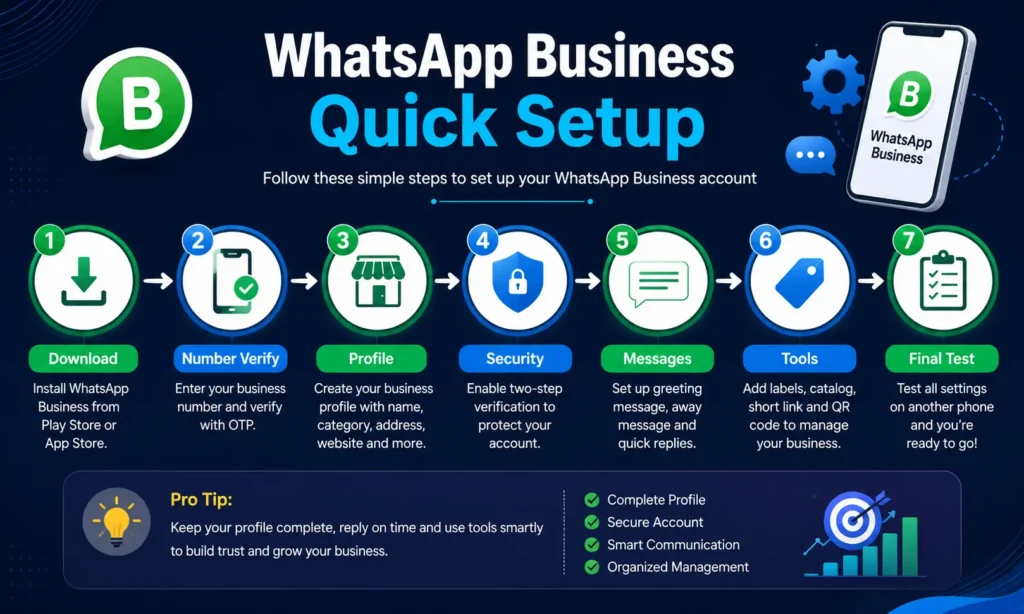
अब आप नीचे दिए गए quick navigation path की मदद से अपना WhatsApp Business setup एक-एक करके शुरू कर सकते हैं।
App Download: Play Store/App Store → WhatsApp Business → Install → Open
Account Registration: WhatsApp Business → Agree and Continue → Country चुनें → Phone Number दर्ज करें → Verification Code डालें
Business Profile: WhatsApp Business → Tools → Profile → Edit
Two-step Verification: Settings → Account → Two-step verification → Turn on
Greeting Message: Tools → Greeting message → Send greeting message ON → Message edit करें → Recipients चुनें → Save
Away Message: Tools → Away message → Send away message ON → Message edit करें → Schedule चुनें → Recipients चुनें → Save
Quick Replies: Tools → Quick replies → Add (+) → Message लिखें → Shortcut बनाएं → Save
Labels: Tools → Labels → Add (+) → Label name लिखें → Save
Short Link: Tools → Short link → Default message set करें → Copy या Share link
QR Code: Tools → Short link → View QR Code
Catalog: Tools → Catalog → Add new item → Details भरें → Save
Linked Devices: Settings → Linked devices → Connected devices check करें
Setup public करने से पहले final test
दूसरे phone से profile खोलकर देखें। Greeting और Away Message test करें, Quick Reply shortcuts चलाएँ, Labels का workflow check करें और Short Link तथा QR Code scan करें।
अंत में business name, description, working hours, website, email और default messages की spelling verify करें। सही setup वही है जिसे customer बिना confusion समझ सके और जिसे आप रोज़ realistically manage कर सकें।
अक्सर पूछे जाने वाले सवाल
क्या WhatsApp Business App पूरी तरह free है?
WhatsApp Business App download और basic use के लिए free है। Mobile data charges लागू हो सकते हैं। कुछ advanced, subscription-based या marketing features paid हो सकते हैं और उनकी availability account, device या location के अनुसार बदल सकती है।
क्या personal WhatsApp और WhatsApp Business के लिए एक ही number इस्तेमाल कर सकते हैं?
एक phone number को WhatsApp Messenger और WhatsApp Business App में एक ही समय पर active नहीं रखा जा सकता। दोनों apps एक phone में चलाए जा सकते हैं, लेकिन उनके phone numbers अलग होने चाहिए। Existing personal number को Business App में move करने पर वह number personal WhatsApp में active नहीं रहेगा।
क्या personal WhatsApp की पुरानी chats Business App में transfer हो सकती हैं?
Existing account को WhatsApp Business में move करते समय उपलब्ध backup को restore करने का option मिल सकता है। Migration शुरू करने से पहले updated chat backup बनाएं और restore process पूरा होने तक पुराने app या backup को delete न करें।
क्या WhatsApp Business शुरू करने से sales बढ़ जाती हैं?
नहीं। WhatsApp Business customer communication को व्यवस्थित कर सकता है, लेकिन sales की guarantee नहीं देता। सही product या service, honest information, timely response, उचित pricing और customer experience अधिक महत्वपूर्ण हैं।
क्या customers को promotional messages भेज सकते हैं?
Promotional messages केवल उन लोगों को भेजें जो आपके business से ऐसे messages पाना चाहते हैं। Messages relevant और सीमित रखें। किसी customer के “Stop”, unsubscribe या promotional messages बंद करने के अनुरोध का सम्मान करें। बिना permission बार-बार offers भेजना customer trust और account reputation दोनों को नुकसान पहुँचा सकता है।
निष्कर्ष
WhatsApp Business केवल personal WhatsApp का professional नाम नहीं है। इसे उपयोगी बनाने के लिए सही business number, complete profile, realistic working hours, जरूरी automatic messages, organized Labels और account security पर ध्यान देना पड़ता है।
अब जब आप समझ चुके हैं कि WhatsApp Business कैसे शुरू करें, तो पहले Business Profile, Two-step verification, Greeting Message, Away Message और जरूरी Quick Replies setup करें। इसके बाद अपने actual workflow के अनुसार Labels, Short Link, QR Code और Catalog जोड़ें।
अब अपना WhatsApp Business Setup शुरू करें
ऊपर दिए गए WhatsApp Business Quick Setup Navigation को follow करके एक-एक setting पूरी करें। Account public करने या customers के साथ share करने से पहले दूसरे phone से Profile, automatic messages, Short Link और QR Code जरूर test करें।
इस guide से जुड़ा कोई सवाल, correction या practical problem हो तो DigitalBhai Contact Us page के माध्यम से अपना message भेज सकते हैं।
नोट: WhatsApp के features, menu paths और policies समय के साथ बदल सकते हैं। Current information के लिए WhatsApp के official Help Center या FAQ देखें।